Qualified Calls
Use duration thresholds and AI signals to measure call quality across dashboard, call log, and ad conversion workflows.
How Qualification Works
CallScaler uses two qualification signals:
1. Duration-based qualified calls for dashboard and reporting (based on your business threshold).
2. AI qualification in call intelligence (qualified or not qualified, with a reason when available).
You can use both together: duration for volume reporting, and AI for quality analysis and ad conversion filtering.
Build Your Qualified Call Rules
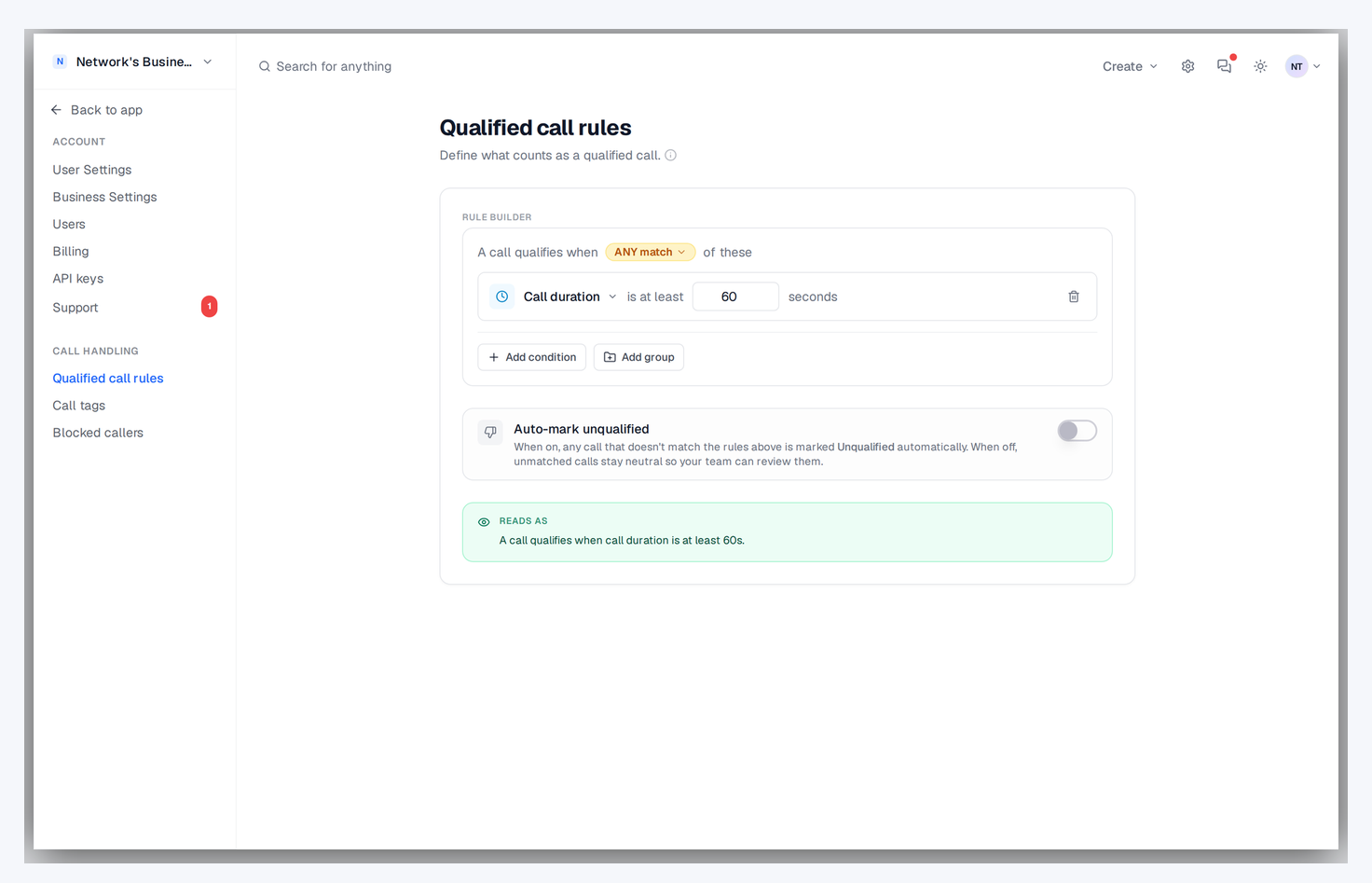
1. Open Settings → Qualified call rules.
2. Add conditions on call duration, AI score, or call tags, and group them with ALL or ANY matchers.
3. Save — the rule tree drives dashboard qualified metrics, qualified-only call log views, and conversion uploads.
You can also flip on Auto-mark unqualified so calls that fail your rules are tagged Unqualified automatically. The READS AS banner restates the saved rule in plain English so you can sanity-check the logic before leaving the page.
A common starting point is a single duration condition (for example, duration ≥ 90 seconds), then layer in AI score or tag conditions after reviewing real calls. A plumber who books quickly might use 60 seconds; a legal intake team might use 120 seconds plus an AI-score floor.
View Qualified Calls in Call Log
1. Go to Call Log.
2. Turn on the qualified-only view.
3. Review the filtered results using your current threshold.
You can still apply all normal filters (date range, source, call flow, number, and more) while reviewing qualified calls.
Review AI Qualification in Call Detail
Open any call from Call Log and check the AI Insights section. You can see:
- AI score
- AI category
- Qualified or Not Qualified badge
- Qualification reason (when available)
This is useful when two calls have similar duration but different lead quality.
Use Qualification in Ad Integrations
In Extensions, each ad platform integration supports qualification filters like minimum duration, minimum AI score, and qualified-only mode. This helps send cleaner conversion data back to Google Ads, Meta Ads, and Microsoft Ads.
If your thresholds are too strict, valid leads may be excluded from conversion uploads. Start conservative, monitor results for a week, then tighten filters.
Troubleshooting Qualification Results
If qualified counts look off:
1. Re-read your rule tree in Settings → Qualified call rules — the READS AS preview describes the saved logic in plain English.
2. Open a few representative calls and compare against the rule conditions (duration, AI score, tags).
3. Check AI Insights in call detail to separate duration-based qualification from AI qualification.
4. Review ad integration filters in Extensions.
On this page