What Are Call Flows?
How call flows work and how they control what happens when someone calls your tracking number.
Overview
A call flow is a set of instructions that controls what happens when someone calls one of your tracking numbers. Steps execute in order from top to bottom. If a step fails (for example, a forwarding number doesn't answer within the timeout), the call moves to the next step automatically.
A simple call flow might play a greeting, then forward to your office, then take a voicemail if nobody answers. A complex one might route based on time of day, ring multiple team members simultaneously, and send data to your CRM via webhook.
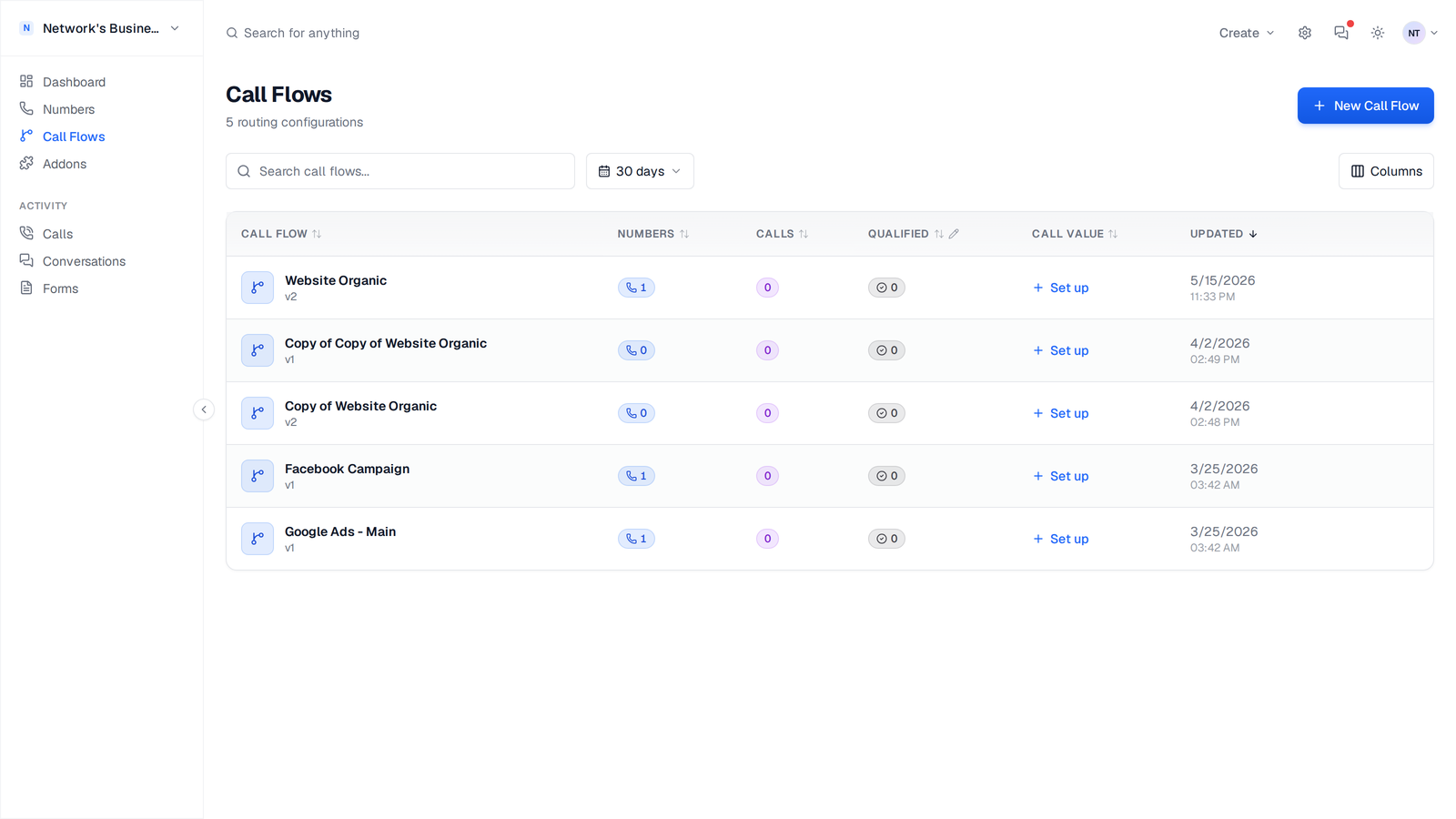
Creating a Call Flow
1. Go to Call Flows in the sidebar.
2. Click New Call Flow.
3. Enter a descriptive name (e.g., "Google Ads — Emergency Plumbing" or "Main Office Line").
4. Add steps using the step picker. Drag to reorder.
5. Configure settings (recording, whisper messages, etc.) in the Settings tab.
6. Click Save.
The call flow is immediately active for any numbers assigned to it.
Use specific names that identify the campaign or source. When you have dozens of call flows, names like "Google Ads — Tampa Plumbing" are far easier to manage than "Flow 1."
Step Types
CallScaler includes 10 active call flow step types in the editor. Combine them to build your routing logic. See Call Flow Step Types for full setup details.
Legacy in-flow Webhook steps are deprecated and skipped during execution. Use Post-Call Webhooks in call flow settings instead.
- •Greeting — Play an audio file or text-to-speech message
- •Forward Call — Route to a destination phone number
- •Voicemail — Let the caller leave a recorded message
- •IVR / Phone Menu — "Press 1 for Sales, Press 2 for Support"
- •Multi-Ring — Ring multiple numbers simultaneously; first to answer wins
- •Schedule — Route based on day of week and time of day
- •Round Robin — Distribute calls evenly across a list of numbers
- •Zip Code Routing — Prompt for the caller's ZIP code and route by your configured ZIP rules
- •Tag-Based Routing — Route based on custom tags or caller attributes
- •Real-Time Bidding (RTB) — Send call data to buyers via ping/post and route to the highest qualified bid
Assigning Numbers
A single call flow can serve multiple tracking numbers. This is useful when several numbers (from different campaigns) should all route the same way.
1. Go to Numbers.
2. Click a number to open its settings.
3. Select a call flow from the dropdown.
You can also assign call flows in bulk: select multiple numbers, then use the bulk action menu to change their call flow at once.
Duplicating a Call Flow
To create a copy of an existing call flow with all its steps and configuration:
1. Open the call flow you want to duplicate.
2. Click the ⋮ menu (or the Duplicate button on the call flow card).
3. A new call flow named "Copy of [original name]" is created instantly.
The duplicate includes all steps and settings but has no numbers assigned. Edit the copy to customize it for a different campaign or routing scenario.
Duplicating is useful when you want to create variations of a proven call flow — for example, the same routing logic but with a different greeting for each market.
Call Flow Stats
Each call flow shows aggregate statistics on its card and detail page: total calls, qualified calls, texts, and voicemails. Use the date filter to narrow stats to a specific period. These stats help you compare performance across campaigns at a glance.
On this page