Installing the Tracking Script
Install the CallScaler tracking snippet on your website to enable DNI and form tracking.
What this script does
CallScaler uses one global tracking script for your business. It handles both Dynamic Number Insertion (DNI) and form tracking. After install, the script can swap numbers for any configured pool and send form submissions with attribution data.
Get your snippet
1. Open Extensions -> Website Tracking.
2. Copy the Global Tracking Snippet.
3. Keep your business ID value exactly as generated.
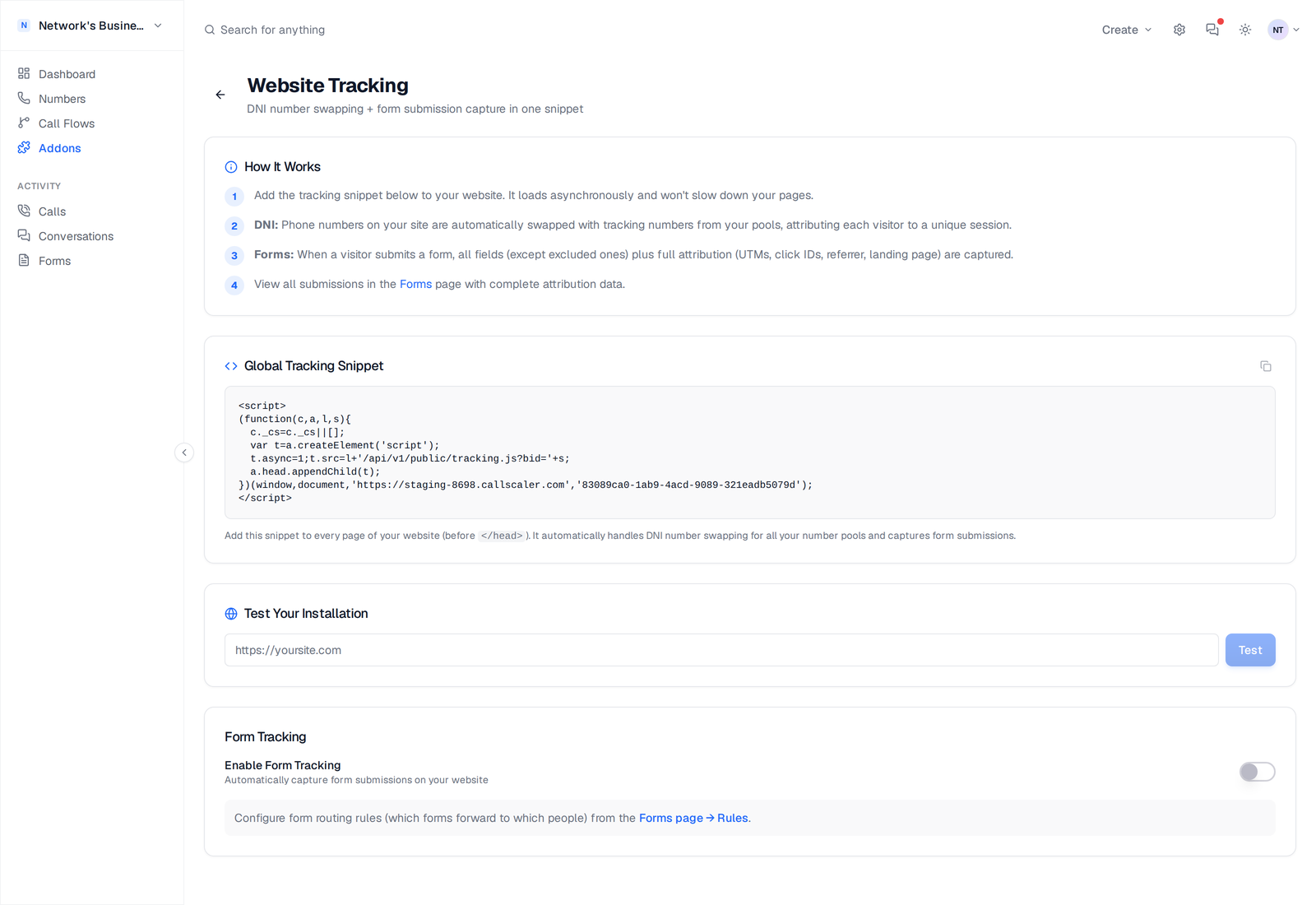
Install it on your site
1. Paste the snippet on every page, ideally before </head>.
2. If you use Google Tag Manager, add it as a Custom HTML tag that fires on all pages.
3. Publish your site changes.
<script>
(function(c,a,l,s){
  c._cs=c._cs||[];
  var t=a.createElement('script');
  t.async=1;t.src=l+'/api/v1/public/tracking.js?bid='+s;
  a.head.appendChild(t);
})(window,document,'https://callscaler.com','YOUR_BUSINESS_ID');
</script>
How pool swapping works
The script reads all pools in your business and requests numbers from /api/v1/dni/number. When a visitor gets a number, the script keeps that DNI session alive with a heartbeat every 60 seconds.
- •If a visitor already has an active session, they keep the same number.
- •If pool numbers are exhausted, fallback behavior from pool settings is used.
- •The script replaces matching phone text on page content and tel: links.
Optional HTML helper
If you want explicit elements updated, add data-callscaler to the phone element. The script also updates normal matching phone text without this attribute.
<a data-callscaler href='tel:+18135551234'>(813) 555-1234</a>Test the install in CallScaler
1. Go back to Website Tracking.
2. In Test Your Installation, enter your site URL and click Test.
3. Review status output:
Use incognito mode for testing to avoid cached sessions showing stale numbers.
- •Everything looks great: script found and recent activity detected.
- •Script installed: script found, but no recent traffic yet.
- •Receiving data: activity detected (often GTM), even if source scan does not find inline script.
Common issues
Most install failures come from one of these:
Do not use old pool-specific snippet patterns with data attributes like data-pool-id. The current implementation uses one global script from Website Tracking.
- •Wrong business ID in the script URL.
- •Snippet only added to one page instead of site-wide.
- •No active pool numbers or no fallback configured.
- •Pool target number does not match the phone number text on your page.
On this page