Call Log Exports
Export exactly the call data you need, including optional AI summary and full transcription columns.
Open the export modal
1. Go to Call Log.
2. Apply any filters you want (date range, status, source, number, call flow, direction, search, qualified-only).
3. Click Export in the top-right.
The export uses your current filters, so narrow the table first before downloading.
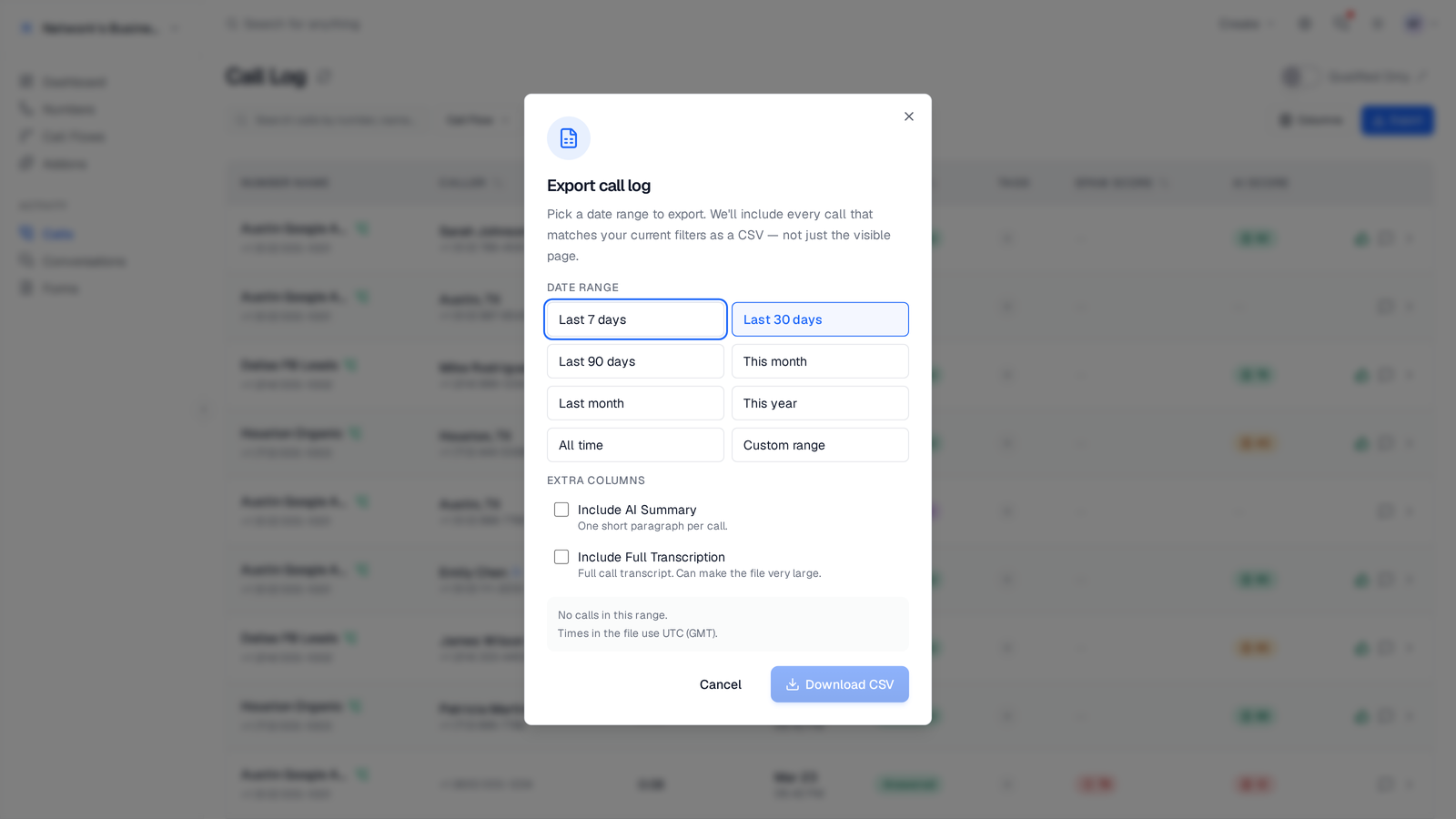
Choose AI export columns
In the export modal, you can add optional fields under Extra columns:
Both options are off by default. Enable them only when you need AI text in your CSV.
- •Include AI Summary adds one summary column per call.
- •Include Full Transcription adds the complete transcript text.
Download the CSV
1. Confirm your date range and optional AI columns.
2. Click Export.
3. Open the CSV in Sheets or Excel for review and sharing.
Use this for QA reviews, lead audits, and handoffs to teams without app access.
When to include transcription
Full transcript columns can make files much larger. For weekly reporting, most teams export base call fields only and keep transcripts in-app. For audit workflows, include summaries first, then include full transcripts only for the filtered subset that needs deeper review.
If a call has not finished AI processing yet, summary and transcription fields may be empty in export. Re-export after processing completes.
Billing and usage reminder
Exports do not create extra call-processing charges by themselves, but transcription content exists only for calls where AI transcription ran successfully. For current plan rates and usage details, check Settings → Billing.
On this page