Account Logs
Review every balance-affecting event and export filtered billing history.
Open Account Logs
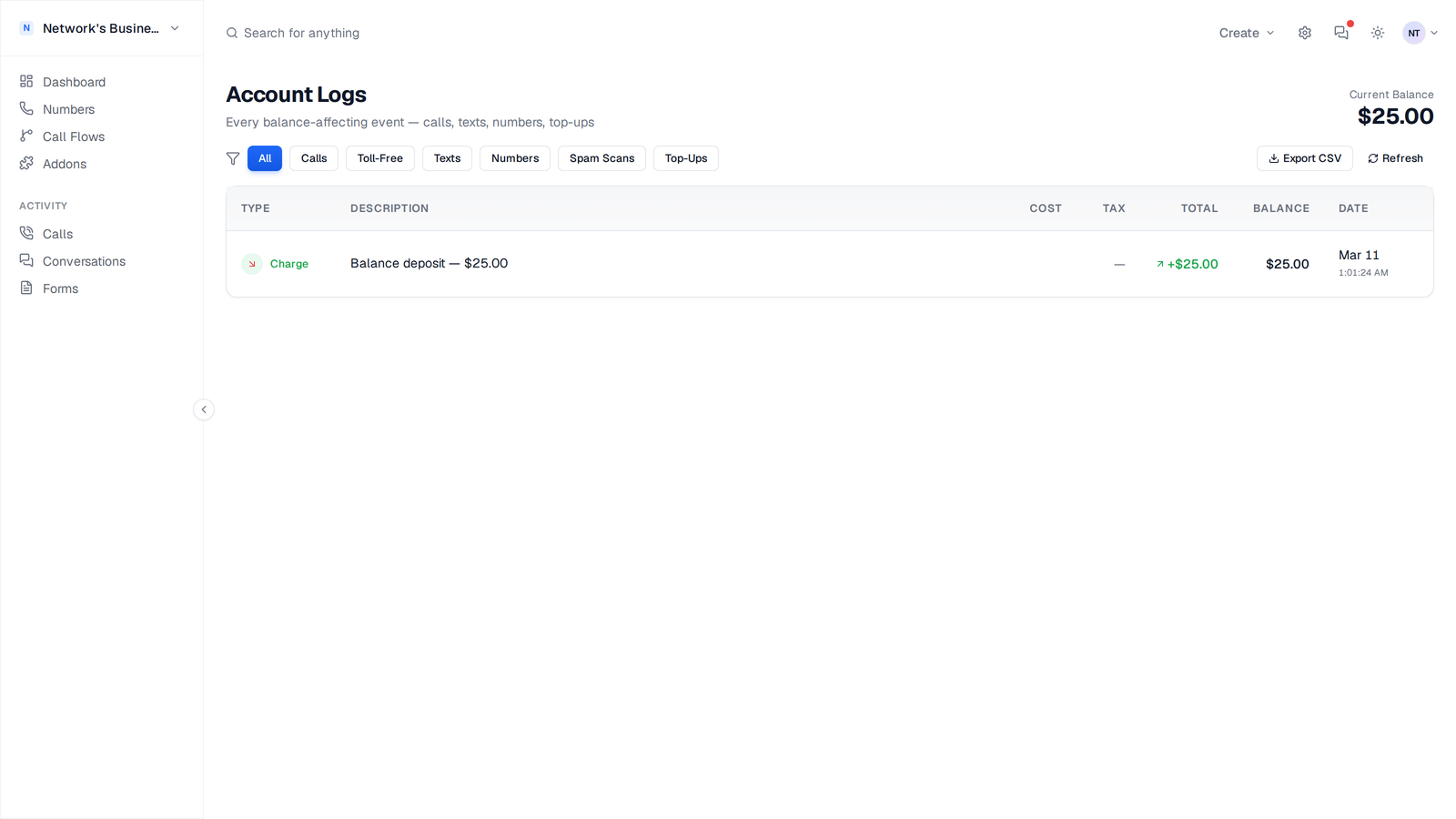
1. In the app sidebar, go to Account Logs. 2. Use this page to review all balance-affecting events for your current business. 3. Check the Current Balance card in the top-right for your live balance while you audit charges.
Understand each row
Each row shows event type, description, cost, tax, total, running balance, and timestamp. Credits (like top-ups) show as positive totals, while usage and renewals show as charges.
If Cost is blank but Total shows a positive amount, it is usually a credit-style event (for example a top-up or manual credit).
Use quick filters
Use the filter chips at the top of the table to narrow the list by event type without leaving the page.
- •All
- •Calls
- •Toll-Free
- •Texts
- •Numbers
- •Spam Scans
- •Top-Ups
Export by date range
1. Click Export CSV. 2. Pick a preset range (like Last 30 days) or choose Custom range. 3. Download the file after the entry count appears. The export includes all matching rows in the selected range, not just the current page.
Very large exports may require narrowing the date range before download.
Timezone behavior
Log timestamps follow your effective app timezone setting. If your team works across regions, set your preferred timezone in Settings → Profile before exporting so CSV dates match your reporting window.
On this page